

4·
10 months agoYou can just go to that instance’s webpage and view their frontpage. It’s worth noting that NSFW posts are often hidden without an account though, so if an instance was defederated for NSFW content it might not be obvious why.
You can just go to that instance’s webpage and view their frontpage. It’s worth noting that NSFW posts are often hidden without an account though, so if an instance was defederated for NSFW content it might not be obvious why.
To be fair, this can be offset by sticking to smaller communities. All the large communities on reddit were low quality, but reddit’s large userbase allowed a lot of niche communities to exist with an acceptable amount of users. Lemmy (with its smaller overall user numbers) has much better “large” communities, but many of the niche communities barely have enough active users to get by.

The recent UI update to Discord’s mobile app has me increasingly convinced that I don’t want UI updates unless the old UI has actual issues.

You couldn’t get it at all before Netflix paid to port it to Android could you?
KDE has a lot of nice points, I do really like the customization and I think I prefer a lot of the default KDE apps over their GNOME counterparts.
But there’s just something about GNOME I find really comfortable to use. I feel like on paper I should like KDE more, but I always end up going back to GNOME and being happier with it.
AI has been the hot stuff in tech for awhile, and as the CEO of openAI (who made chatGPT, starting the AI tech explosion and are current leaders of the AI tech), he’s been the face of AI.
It’s kinda like if Facebook fired Mark Zuckerberg in the middle of the explosion of social media.
Unless Newell has been practically grooming a successor for years
Supposedly he’s doing this with his son. Only time will tell though.
There is a full desktop mode available, it runs Linux so any game that can be made to run on Linux will work.
The battery seems like better than a marginal improvement. Valve claims 30-50% longer battery life, but some early reviews are reporting better improvements than that (IGN reports that Cyberpunk went from 1.5 hours to 2.5 hours, same settings).
My understanding is the KDE release schedule/development cycle keeps it from being a viable primary desktop environment for non-rolling release distros.
Topgrade is great, one of the first things I install on a new system.

Good to know, I’ve never done enough with Brainfuck to know anything more than basic info about it.
I recognized it as Brainfuck, but assumed it was going to be a fork bomb for some reason.

I’ve tried both of those, tree style tabs kinda works, but isn’t ideal. It’s also not an option on mobile at all, and I prefer to use the same browser for mobile and desktop for tab sync/etc.
I used Firefox on desktop and mobile for a few months this past year, but never got as nice of a work flow going as I had with Brave. Then a Firefox update for mobile broke the browser for a week or two (crashed on launch, resetting app data/reinstalling didn’t help) and I went back to Brave, and realized how much I missed tab grouping and some other stuff.
I’m keeping Firefox installed, and I’d be happy to switch back someday if tab grouping gets ported over.
People don’t like the creator of Brave because he’s supposedly anti-trans. He donated to some anti-trans political group iirc.
The browser also has some crypto stuff (web advertisment replacement, block chain based decentralized browser sync), and a lot of people hate crypto these days.
Personally I think it’s a good browser, the web needs advertising revenue to function and it’s solution to replacing web ads with optional browser ads that still pay the websites you visit seems like a decent solution. I respect the push to use a non-chromium browser, but personally I rely too much on browser tab groups to use anything Firefox based.

It’ll run well on a more power PC with AMD graphics card. Nvidia is currently borked.

Cura is fully available on Linux, as well as PrusaSlicer (my preferred slicer). For modelling there’s Blender of course, and I know people have had success getting Fusion360 to work with some effort (may not be a good option for a newer linux user though). I personally use OpenSCAD, but that’s very functionally different than Fusion360 and probably won’t be what you’re looking for.
My understanding is that systemd goes against traditional unix philosophy, but that from an end users perspective it will generally be a much better experience.
I’ve heard some init systems are maybe faster, but it’s a very minor improvement if true and you’re giving up a lot of features for it.

Honestly performance is a big selling factor for PC games for me. I was more interested in Immortals than Armored Core 6 pre launch, but Armored Core apparently runs great on steam deck and will be a good experience on any PC I own, while I’m not sure Immortals would run acceptably on my main PC.

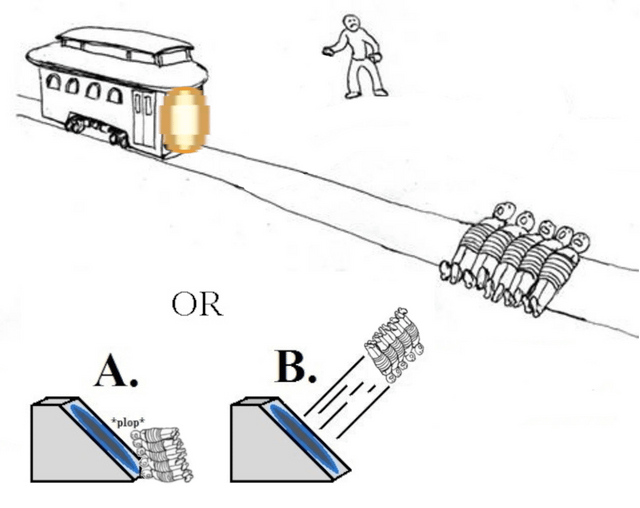
Honestly, giving bonuses for employees having healthy habits seems fine. It’s not like anyone is entitled to bonuses, they’re not “withholding” bonuses or anything, they’re just giving extra incentives to live well.